 All Projects
SnipShip
Turn code into beautiful, shareable screenshots and drop them straight into posts and docs.


Overview
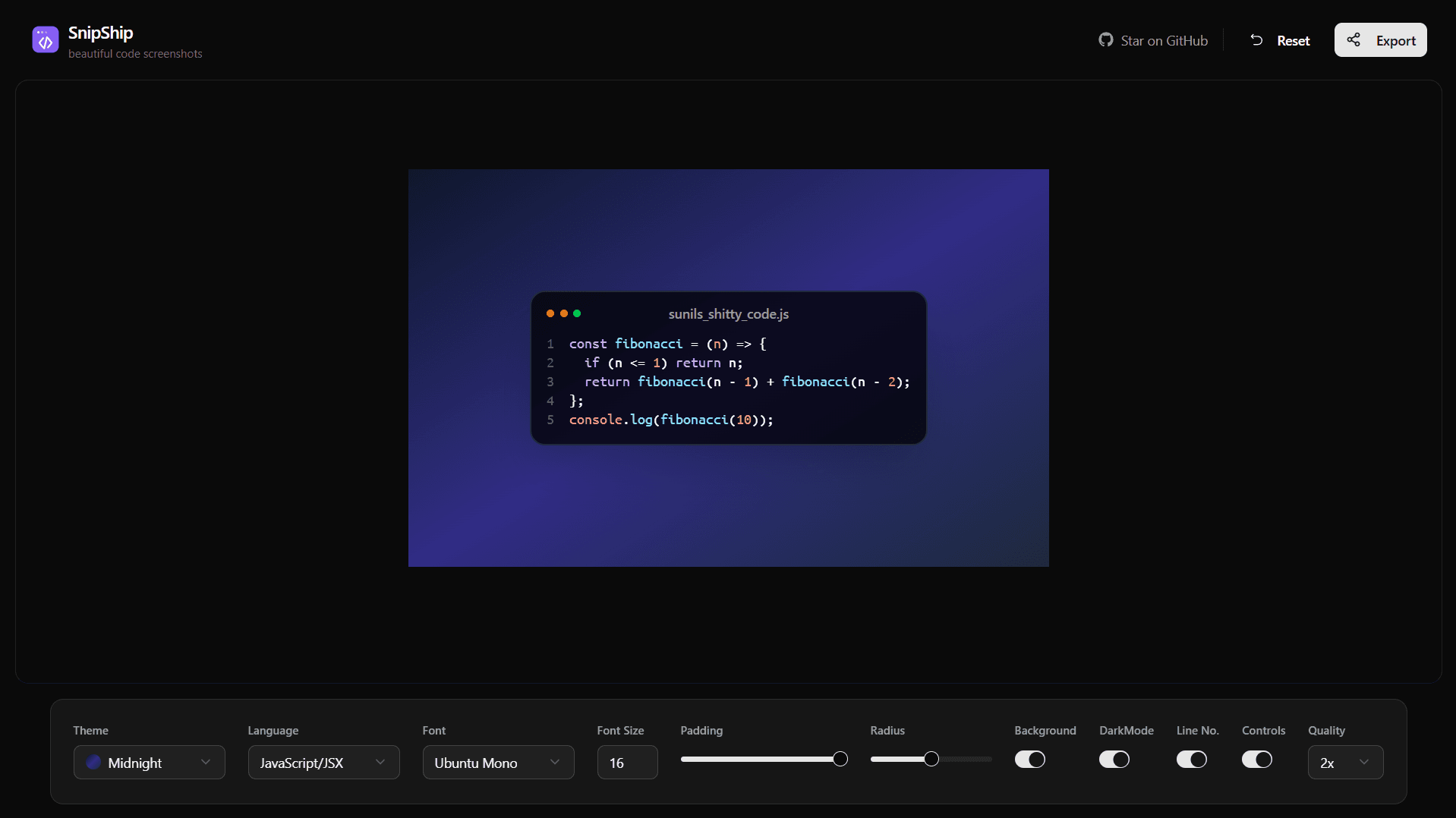
Sharing code online usually means pasting into a grey monospace block that looks terrible in a blog post, or worse, taking a phone screenshot of your editor. SnipShip exists to solve that in seconds: paste your code, pick a theme, and export a crisp, high-resolution image that actually looks good on social media, in documentation, or in a slide deck. The tool auto-detects the programming language, applies syntax highlighting, and wraps everything in a customisable window frame with gradient backgrounds, adjustable padding, and your choice of over a dozen monospace fonts. State management runs through Zustand for instant reactivity as you tweak settings, and the rendering pipeline uses HTML-to-Image to faithfully convert the styled DOM into pixel-perfect PNG or SVG output at up to 3x resolution for retina displays.
Make It Look Good
The visual customisation system offers more than a dozen hand-crafted gradient backgrounds ranging from subtle monochromes to bold multi-colour sweeps. Font selection includes popular developer choices like JetBrains Mono, Fira Code, Source Code Pro, and Cascadia Code, each loaded on demand to keep the initial bundle lean. Every visual parameter is adjustable: window chrome style (macOS dots, Windows controls, or none), corner radius from sharp to fully rounded, padding from tight to generous, font size, line height, and whether to show line numbers. A live preview updates instantly as you change settings thanks to Zustand's fine-grained subscriptions — there's no 'apply' button, what you see is always what you'll export.
Smart Highlighting
Language detection runs automatically through Highlight.js's auto-detection engine, which analyses the pasted code's syntax patterns to determine the language without requiring manual selection. This covers over 190 languages out of the box. Once detected, the appropriate grammar is applied with a theme that complements the chosen background gradient — dark code themes pair with dark backgrounds, and light themes with lighter ones. Users can override the auto-detection if needed, but in practice it's accurate enough that most people never touch the language selector. The highlighting updates in real time as code is edited in the input area.
Export Your Way
The export pipeline supports multiple output formats and resolutions. PNG export renders at 1x, 2x, or 3x pixel density for crisp results on high-DPI screens. SVG export produces infinitely scalable vector output ideal for documentation or print. A clipboard copy button places the rendered image directly on the system clipboard for instant paste into Slack, Notion, or any rich-text editor. There's also a raw code copy button and a shareable link generator that encodes the snippet and settings into a URL. Keyboard shortcuts cover all common actions — Cmd+Shift+C for clipboard, Cmd+S for download — and your last-used settings persist in localStorage so the tool remembers your preferences between sessions.
What I Learned
- 01
Rendering DOM to a faithful raster image is surprisingly fiddly. Fonts need to be fully loaded before capture, CSS transforms can offset elements, and sub-pixel rendering differences between the live preview and the exported image require careful normalisation of font smoothing and letter spacing.
- 02
Sensible defaults are the most important design decision in a tool like this. Most users want a great-looking result without touching a single setting, so the default gradient, font, and padding need to produce something shareable out of the box.
- 03
Small quality-of-life touches — clipboard copy, keyboard shortcuts, persistent settings, instant preview — are what separate a tool people bookmark from one they use once and forget. The core feature is simple; the polish is what makes it sticky.